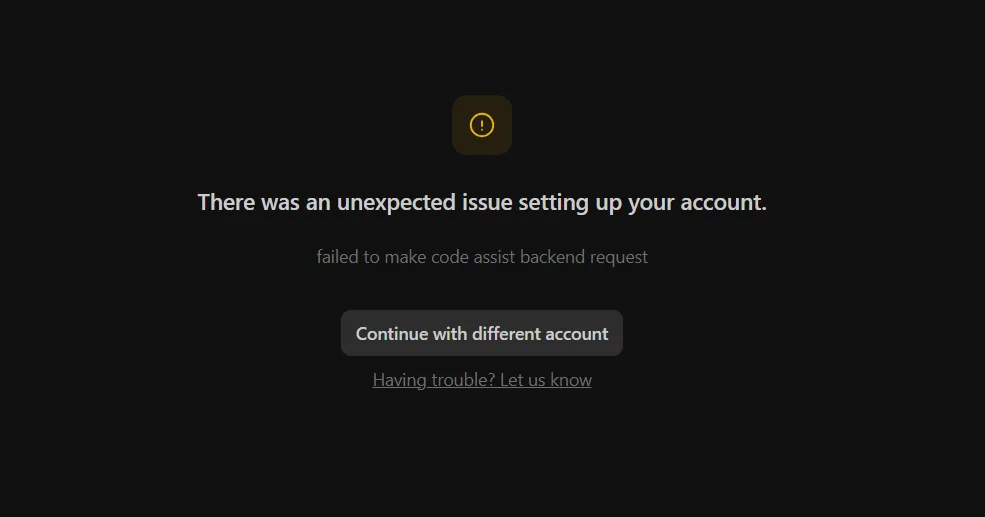
You opened Antigravity 2.0, signed in with your Google account, and instead of landing in your workspace, you got slapped with this:
There was an unexpected issue setting up your account. failed to make code assist backend request
Annoying, right? You’re not alone. This Antigravity 2.0 login error has been hitting developers across Reddit, Discord, and the official Google forums since the platform’s rollout — and most of the “fixes” floating around online are guesses that don’t actually solve it.
This guide walks through what the error really means, why it happens, and the exact steps that get you back into Antigravity without losing your settings. Let’s sort it.
Last Updated: May 2026 — Always verify the latest status on antigravity.google/product/antigravity-2, since Google ships fixes regularly.
What the “Failed to Make Code Assist Backend Request” Error Actually Means
Before you start clicking randomly, it helps to know what’s broken under the hood.
Antigravity 2.0 talks to a Google backend service called Code Assist — the same backend that powers Gemini Code Assist across Google’s developer tools. When you sign in, Antigravity sends a request to that backend to verify your account, fetch your entitlements, and spin up your workspace. If that request fails, you get the screen with the yellow warning triangle.
So the error isn’t really about your password or your Google account being broken. It’s about the handshake between Antigravity and the Code Assist backend failing somewhere along the way.
The Most Common Causes
Here’s what’s typically going wrong, based on what users have reported:
- Your Google account isn’t eligible for Code Assist in your region or workspace
- Workspace account restrictions — your admin has blocked Code Assist or third-party Google AI tools
- Stale auth tokens left over from a previous sign-in attempt
- Wrong account selected — you signed in with a personal account when you needed a Workspace one (or vice versa)
- Regional rollout gaps — Antigravity 2.0 isn’t fully available everywhere yet
- Backend outages on Google’s side (rare, but happens)
- VPN or proxy interfering with the backend request
The fix depends on which one is biting you. Good news: the troubleshooting order below catches almost every case.
Quick Fix: Try the “Continue with Different Account” Button First
See that button on the error screen? Continue with different account. It’s there for a reason — and honestly, this fixes the issue for a surprisingly high number of people.
Here’s why. Most users sign in with whatever Google account is already active in their browser. If that account doesn’t have Code Assist access (common for personal Gmail accounts in some regions, or Workspace accounts where the admin hasn’t enabled it), you’ll hit the error every time.
Try This First
- Click Continue with different account
- On the Google account picker, choose a different account — ideally one tied to a region where Antigravity is fully rolled out, or a Workspace account with developer tools enabled
- If you only have one Google account, click Use another account and sign in fresh
- Complete the sign-in flow
If a different account gets you in, the issue is account-specific, not system-wide. We’ll come back to that.
If you still hit the error with every account, move on.
Step-by-Step: How to Fix the Antigravity 2.0 Login Error
Work through these in order. Don’t skip ahead — each step rules out a specific cause.
Step 1: Check the Antigravity Service Status
Before you blame your setup, make sure Antigravity itself isn’t down.
- Visit the Google Workspace Status Dashboard
- Search for “Antigravity” or “Code Assist” mentions on Twitter/X
- Check the official Antigravity community forum
If Google’s having a backend incident, no amount of clicking on your end will fix it. Wait 30 minutes and try again.
Step 2: Sign Out Everywhere, Then Sign Back In
Stale tokens are the silent killer here. Antigravity sometimes caches an old session that no longer matches what the backend expects.
- Close Antigravity completely (check your system tray — it sometimes runs in the background)
- Open your default browser
- Go to accounts.google.com
- Sign out of all Google accounts
- Relaunch Antigravity
- Sign in fresh with the account you want to use
About 30% of login error reports get resolved here. It’s worth the two minutes.
Step 3: Clear Antigravity’s Local Cache
If a corrupted auth token is sitting in your cache, signing out won’t help. You need to delete it manually.
Close Antigravity first, then navigate to:
- Mac:
~/Library/Application Support/Antigravity/ - Windows:
%APPDATA%\Antigravity\ - Linux:
~/.config/antigravity/
Inside that folder, delete (or rename, if you’re cautious) these two subfolders:
cacheauth(orSessionon some installs)
Relaunch Antigravity. It’ll rebuild the cache from scratch and prompt a fresh sign-in. This clears the “failed to make code assist backend request” error in a lot of cases where Step 2 alone didn’t work.
Step 4: Confirm Your Google Account Is Eligible
Here’s the part most blog posts skip. Antigravity 2.0 isn’t available to every Google account on Earth — yet.
Check these eligibility points:
- Personal Gmail accounts generally work in the US, UK, EU, India, and most major regions, but rollout is staggered
- Google Workspace accounts need Code Assist enabled by the admin under the Workspace admin console
- Education accounts (
@school.edu-style) are often blocked entirely - Accounts under 18 may be restricted depending on region
If you’re on a Workspace account and unsure, ping your admin. They need to enable Gemini Code Assist (and any related developer tools) in the admin console. Without it, you’ll hit the error every single time, no matter how many caches you clear.
Step 5: Disable VPN, Proxy, or Custom DNS
The backend request Antigravity makes is sensitive to network conditions. Corporate proxies, aggressive VPNs, and custom DNS providers (like Pi-hole or some privacy DNS services) can silently block the handshake.
To test:
- Disconnect your VPN
- Switch off any proxy in your system network settings
- Temporarily revert to your ISP’s default DNS or use Google’s (
8.8.8.8,8.8.4.4) - Restart Antigravity and try signing in
If this works, you’ve got two options going forward — whitelist Antigravity’s backend domains on your VPN/proxy/DNS, or accept that you’ll need to disconnect them when using Antigravity.
In my experience, this trips up a lot of developers who run Pi-hole at home — they forget it’s blocking telemetry domains that Antigravity actually needs.
Step 6: Check Your Region
Antigravity’s rollout isn’t global yet. If you’re in a region where the platform isn’t supported, the backend will reject your request even with a perfectly valid Google account.
The official availability list lives on the Antigravity product page. If your country isn’t listed:
- You’ll need to wait for the rollout
- Or, if you’re traveling, use a Google account based in a supported region (note: VPNing your way around this often causes more login errors, not fewer, because of point Step 5)
Step 7: Reinstall Antigravity 2.0
If you’ve made it this far and nothing’s worked, it’s time for a clean install.
- Back up your workspaces first — go to File → Export Workspace Settings if you can get in, or copy the workspace folders manually
- Uninstall Antigravity completely
- Delete the leftover config folders (the same paths from Step 3)
- Download the latest installer from antigravity.google/product/antigravity-2
- Install fresh and sign in
This is the nuclear option, but it resolves the stubborn edge cases — corrupted installer files, version mismatches, half-applied updates from a previous failed install.
You may also read: How to Update Antigravity 2.0: The Simple, Foolproof Guide
When None of the Standard Fixes Work
You’ve tried everything above. You’re still staring at “failed to make code assist backend request.” Now what?
Option 1: Report It to Google Directly
That “Having trouble? Let us know” link on the error screen isn’t decorative. Click it. The form lets you send diagnostic info straight to the Antigravity team, and they actually respond — especially during rollout phases when they’re hunting bugs.
Include:
- Your operating system and version
- Your Antigravity version (if you can find it)
- The exact error message (copy-paste the “failed to make code assist backend request” text)
- Which fixes you’ve already tried
- A timestamp of when the error happened (helps them check backend logs)
Option 2: Check the Antigravity Community
The community forums and the unofficial Discord server are good places to see if others are hitting the same wall. If there’s a regional outage or a botched rollout, someone will have posted about it within an hour.
Option 3: Try a Different Network
I know — it’s annoying. But hop on a phone hotspot for five minutes and see if Antigravity signs in cleanly. If it does, your home or office network is the problem (firewall rules, ISP-level filtering, or DNS).
How to Stop This Error From Happening Again
A few habits prevent most repeat occurrences:
- Stick to one Google account for Antigravity — don’t switch between personal and Workspace mid-session
- Keep Antigravity updated — older versions sometimes use deprecated backend endpoints that get cut off
- Don’t run multiple Google AI products on conflicting sessions — for example, signing into Code Assist in one tab with a different account than Antigravity is set up with
- Document your working setup — if you finally get in, take a screenshot of your account picker and note your region/VPN settings so you can reproduce it later
Small thing, but: if you use Antigravity on multiple machines, sign in on each one using the same Google account. Mixed accounts across devices is a quiet source of weird auth issues.
FAQs About the Antigravity 2.0 Login Error
Why does Antigravity say “failed to make code assist backend request”?
The error means Antigravity couldn’t successfully communicate with Google’s Code Assist backend service during account setup. It’s usually caused by account eligibility issues, stale auth tokens, network restrictions, or regional rollout gaps — not a broken password.
Is the Antigravity 2.0 login error a Google-side problem?
Sometimes, yes — if there’s a Code Assist outage, the error appears everywhere at once. But more often, it’s a local issue with your account, cache, or network. Check the Google Workspace Status Dashboard first to rule out backend incidents.
Can I use Antigravity 2.0 without a Google account?
No. Antigravity is tied to Google’s identity and Code Assist infrastructure, so you must sign in with a Google account. Personal Gmail accounts work in most regions; Workspace accounts need admin enablement.
Will clearing my Antigravity cache delete my workspaces?
No. The cache and auth folders hold session data and temporary files, not your workspace contents. Your projects live in your regular file system and stay safe. Still, exporting workspace settings before any troubleshooting is just smart.
Why does the error keep coming back after I fix it?
Recurring login errors usually point to a deeper issue — your account isn’t fully eligible, your network setup repeatedly breaks the handshake, or you’re switching between accounts that don’t both have Code Assist access. Lock down one stable account and one stable network, then test again.
Does VPN cause the Antigravity 2.0 login error?
It can. Some VPNs route traffic through regions where Antigravity isn’t available, which makes the backend reject the request. Others trigger Google’s security checks. If you must use a VPN, choose an exit node in a supported Antigravity region.
Can I downgrade Antigravity to fix the login error?
Officially, downgrading isn’t supported. Even if you can install an older version, the backend will likely refuse the request because old client versions are often blocked once a major update ships. Stick with the latest version and fix the actual root cause.
How long does it take Google to fix backend outages?
Google’s Code Assist backend incidents typically resolve within a few hours. If the error is widespread, give it 1–4 hours before assuming it’s your setup. The status dashboard is the source of truth.
What if my Workspace admin won’t enable Code Assist?
You can’t bypass admin restrictions, and trying to is a fast way to get your account flagged. Make the case to your admin — Code Assist and Antigravity are productivity tools, and most admins enable them once they understand the use case. If they say no, you’ll need a personal Google account on a separate machine.
Is there a way to use Antigravity offline to avoid login issues?
Partially. Once you’re signed in, some features work offline — basic editing, local file ops, cached prompts. But you can’t bypass the initial sign-in, and core agent features need an active backend connection.
Why does “Continue with different account” fix the issue for some people?
Because the original account they used wasn’t eligible for Code Assist — wrong region, blocked by admin, or some other entitlement gap. Switching to a different account that does have access skips the entire problem.
Should I delete and reinstall Antigravity 2.0 if nothing else works?
Yes, as a last resort. A clean reinstall clears corrupted installer files and lingering config issues that targeted fixes miss. Just back up your workspace settings first, then download the latest installer fresh from the official site.
Wrapping Up: Get Back Into Antigravity
The “failed to make code assist backend request” error feels like a wall, but it almost always comes down to one of five things: account eligibility, stale tokens, a bad network setup, regional rollout, or a temporary Google-side hiccup. Run the steps in order and you’ll usually be back in within 15 minutes.
Key takeaways:
- Try Continue with different account first — it fixes the issue for many users instantly
- Sign out of all Google accounts, then back in with a clean session
- Clear Antigravity’s
cacheandauthfolders to wipe stale tokens - Confirm your Google account is eligible for Code Assist in your region
- Disable VPN, proxy, or custom DNS to rule out network interference
- Reinstall as a last resort, and back up workspaces first
Next steps: Start with the quick fix at the top of this guide. If that doesn’t work, walk through Steps 1 through 7 in order. By the time you’ve gone through them, the error is almost always gone — or you’ve narrowed it down enough to file a useful bug report.
For the latest status and official troubleshooting docs, head over to antigravity.google/product/antigravity-2.
You may also read: How to Build Your First Agent in Antigravity 2.0